Building a Landing Page in Neleto: A Real Walkthrough (Mouse and Prompt)
I built the same landing page twice, by hand in the visual builder and by prompting Claude, and timed both. Including the parts that were slower.
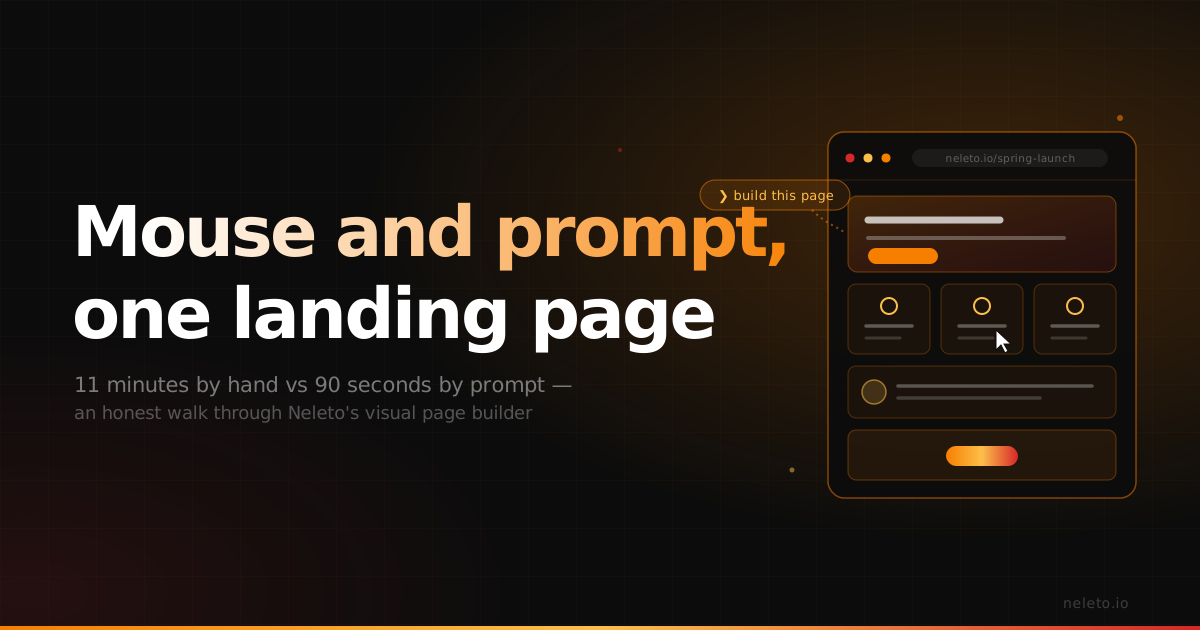
Most "page builder" articles are demos that quietly skip the annoying parts. This isn't that. I built the same landing page twice — once by hand in our visual builder, once by asking Claude to do it through our MCP server — and timed both. Here's exactly what happened, including the bits that were slower than I'd like.
What the page builder actually is
Neleto's page builder is a block-based visual editor. You drag sections onto a canvas — hero, text, image, gallery, CTA, columns, embed — set their content and spacing in a side panel, and the page renders with our built-in Rust frontend. No separate frontend app, no framework to wire up. You hit publish and the page is live on your domain.
The point is that you don't have to choose between "developer headless setup" and "locked-in website builder." You get the visual editor for the 90% case, and full HTML/CSS control plus a plugin API for the 10% that needs it.
Build #1: by hand
I built a launch landing page for a fictional client: hero with headline and a signup button, a three-column feature row, a testimonial block, and a closing CTA.
Start to finish: about 11 minutes. Breakdown of where the time went:
- Hero section: 2 min. Drag the block, type the headline, set the background, link the button.
- Three-column features: 4 min. This was the slow part. Three columns means three icons, three headlines, three blurbs, and getting the spacing even.
- Testimonial: 2 min. Drag, paste quote, add the name and a photo.
- Closing CTA: 1 min.
- Fiddling with mobile spacing afterward: 2 min.
Honest take: the builder is genuinely fast for hero and CTA blocks. Repetitive multi-column content is where any visual editor starts to feel like data entry, and ours is no exception. The mobile preview caught two spacing issues before I published, which I appreciated.
Build #2: by prompt
Then I deleted the page and rebuilt it through the MCP server. I opened Claude and said, roughly:
"Create a landing page in Neleto called 'Spring Launch.' Hero headline 'Ship faster, pay less,' subhead about a 14-day trial, and a 'Start free' button. Add a three-column feature row covering speed, EU hosting, and AI integration. Add a testimonial from a fictional agency owner. End with a CTA to book a demo. Use our brand colors and publish it as a draft."
Claude created the page, populated every block, and left it as a draft for me to review. Elapsed time: about 90 seconds, most of which was me reading what it produced.
The three-column row — the part that took four minutes by hand — was the part the prompt handled best, because describing three parallel things in one sentence is far faster than building them one block at a time. I still went in and tweaked the testimonial wording and swapped one icon. The AI got me to 90%; the visual editor got me the last 10%.
So which one should you use?
Both, depending on the task. After doing this a few times, here's my honest rule of thumb:
- Prompt it when the structure is repetitive or you can describe it faster than you can click it: multi-column rows, FAQ sections, feature grids, anything with parallel content.
- Click it when you're art-directing: nudging spacing, choosing exactly the right image crop, getting a hero to feel right. Taste is still faster with a mouse.
The thing I didn't expect is how often I now start in the prompt and finish in the editor. The AI does the boring scaffolding, I do the polish. That combination is genuinely the fastest way I've found to put a page online, and it's the reason we built the MCP server into the product rather than bolting on a chatbot.
The numbers that matter
For a four-section landing page: 11 minutes by hand, 90 seconds by prompt plus a couple of minutes of polish. That's not a fair fight, but it's also not the point. The point is you're never stuck. Non-technical editors can drag blocks without help. Developers can drop into HTML. And anyone with Claude open can describe a page and have it built.
No frontend framework to set up. No usage-based bill that balloons when the page gets traffic. It renders on our Rust backend, so it's fast out of the box, and it's hosted in Germany if you choose the EU region.
Try it yourself
If you want to see the prompt-to-page flow, the fastest test is to spin up a free Neleto project, connect the MCP server to Claude, and ask it to build something. Give it a messy, one-paragraph description of a page and watch what comes back. Then open the visual editor and make it yours.
That second step — making it yours — is the part we're proudest of. The AI gets you moving. The builder lets you finish.
— Start free at neleto.io · the all-in-one CMS with a built-in MCP server, hosted in the EU.
Read next
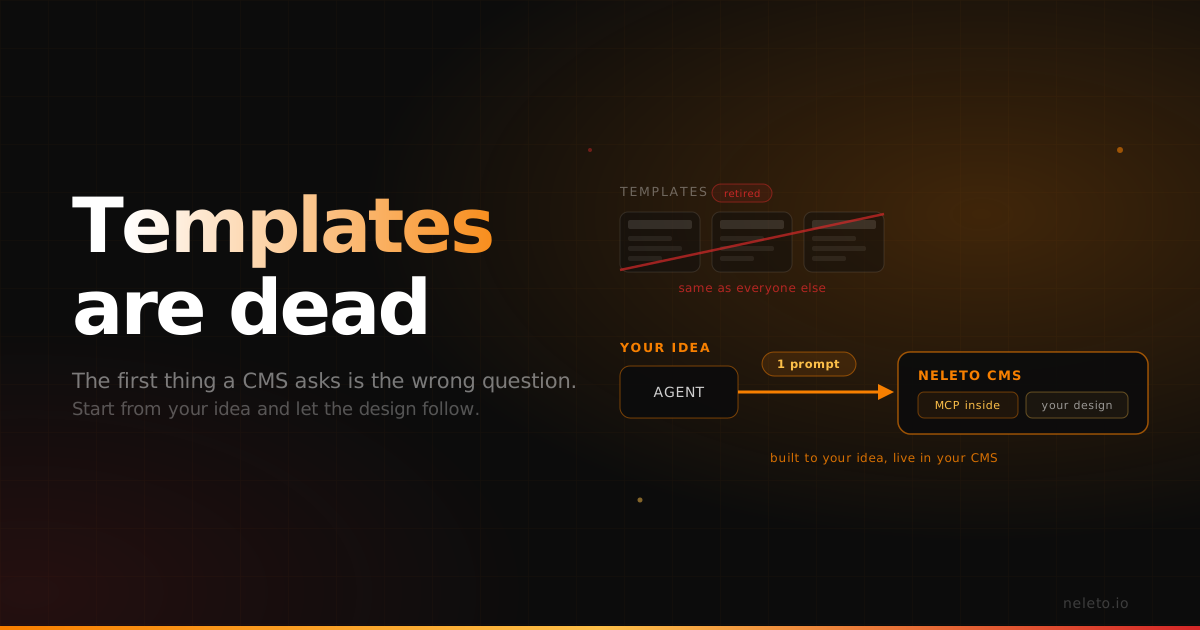
Templates Are Dead
Every CMS starts by asking you to pick a template. Now that AI generates real designs and a native MCP server places them straight into your CMS, you can start from your own idea instead of someone else's theme.
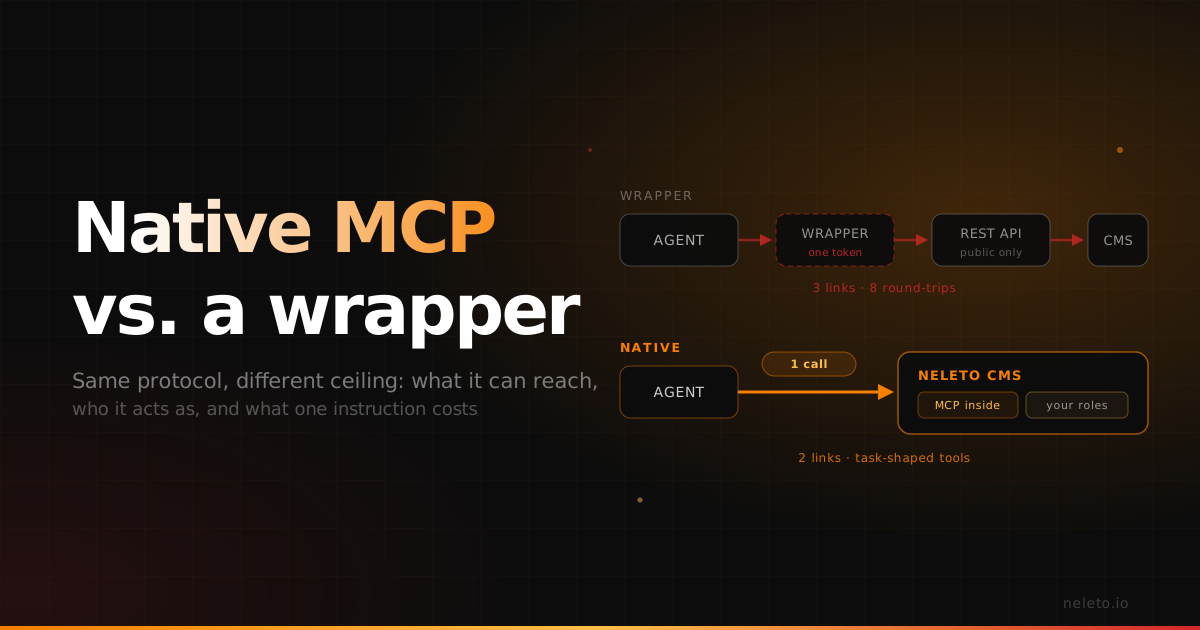
Native MCP vs an MCP Wrapper: Why the Difference Shows Up in Production
Both speak the same protocol. The gap opens in what they can reach, who they act as, and how many round-trips one instruction costs.
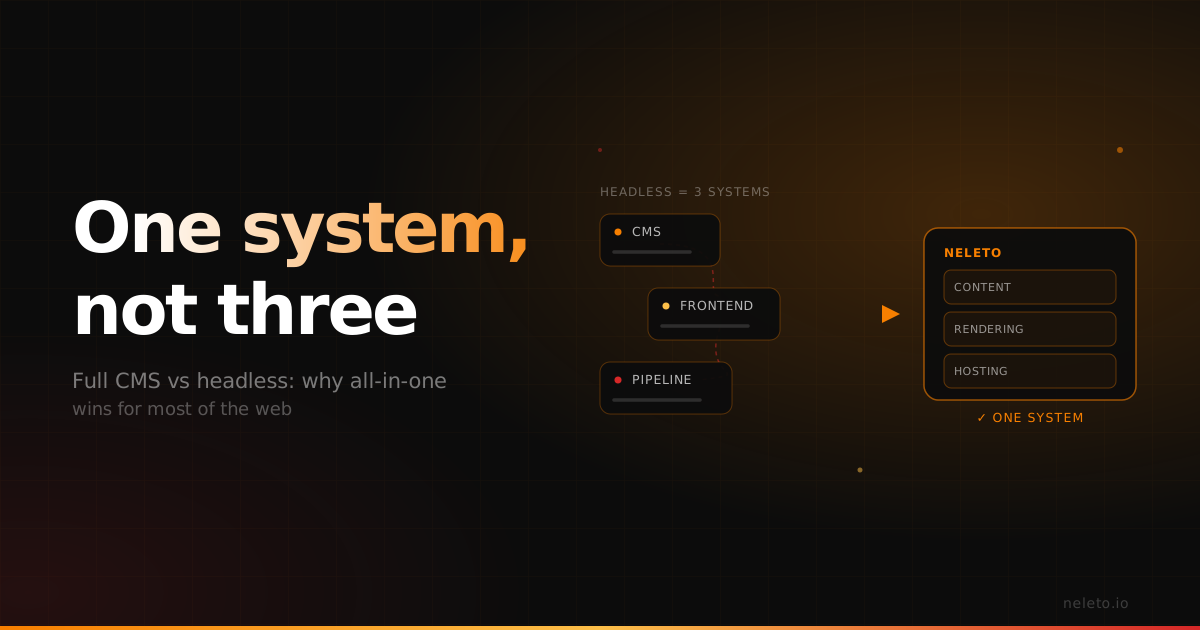
Full CMS vs Headless: Why All-in-One Wins for Most of the Web
Headless earned its reputation for real reasons. Here's the honest trade-off — and why, for most sites, a complete CMS is the better deal.