Blog posts
Neleto provides you with an easy way to create and manage blog posts.
To start with your blog, navigate to the Blog page in the Posts section of
your Neleto instance. You should land on a page similar to this:
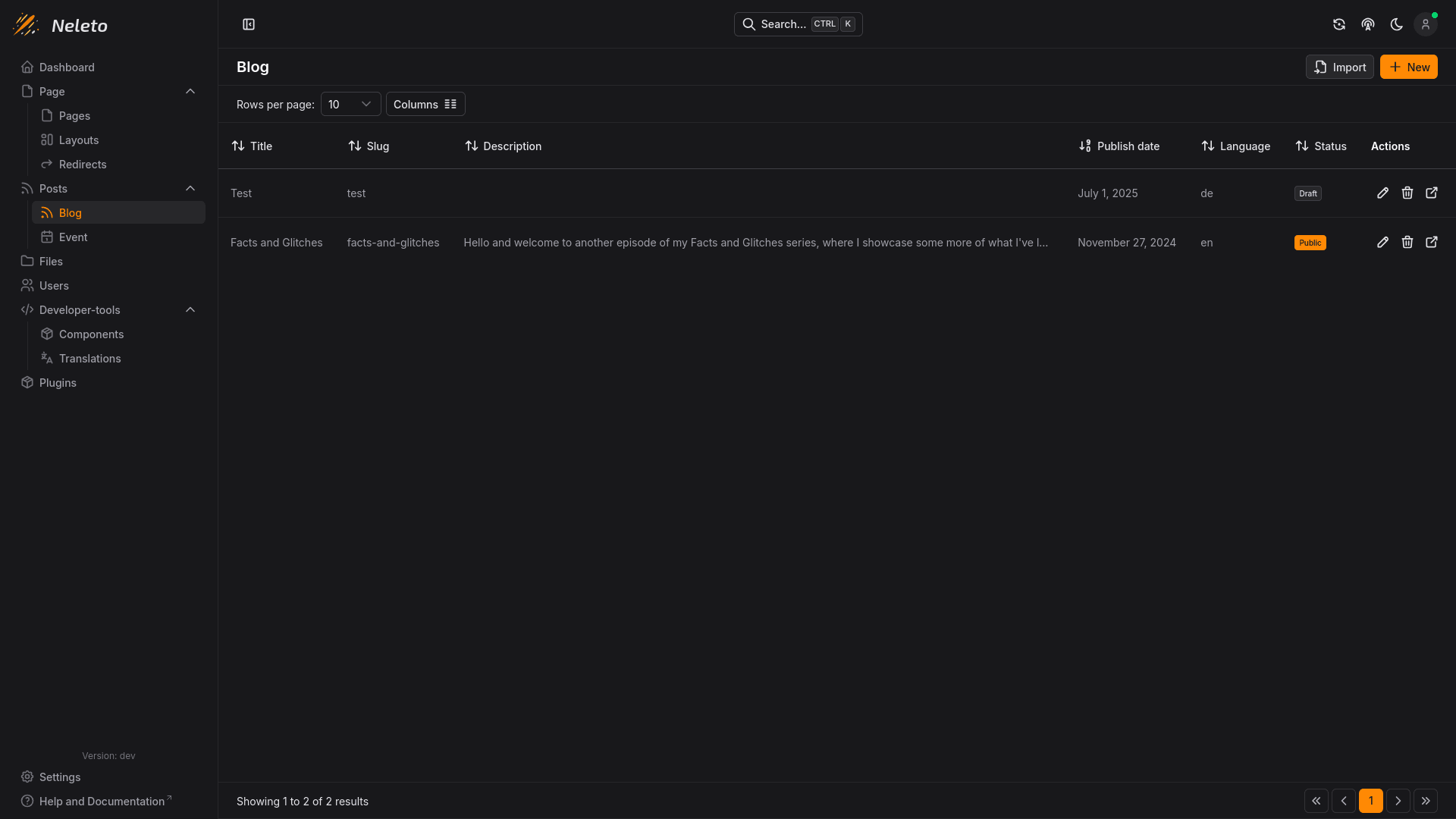
Here you can create new posts by clicking the + New button in the top right,
or you can import existing blog posts from any wordpress instance by clicking
the Import button.
Importing Wordpress blog posts
Click the Import button to import your blog from a wordpress site. You will
get asked for an xml file which you can export from your wordpress site. For
a guide on how to do this, please search the internet yourself, as it might
differ depending on your wordpress version.
Creating a New Blog Post
To create a new blog post, click the + New button in the top right.
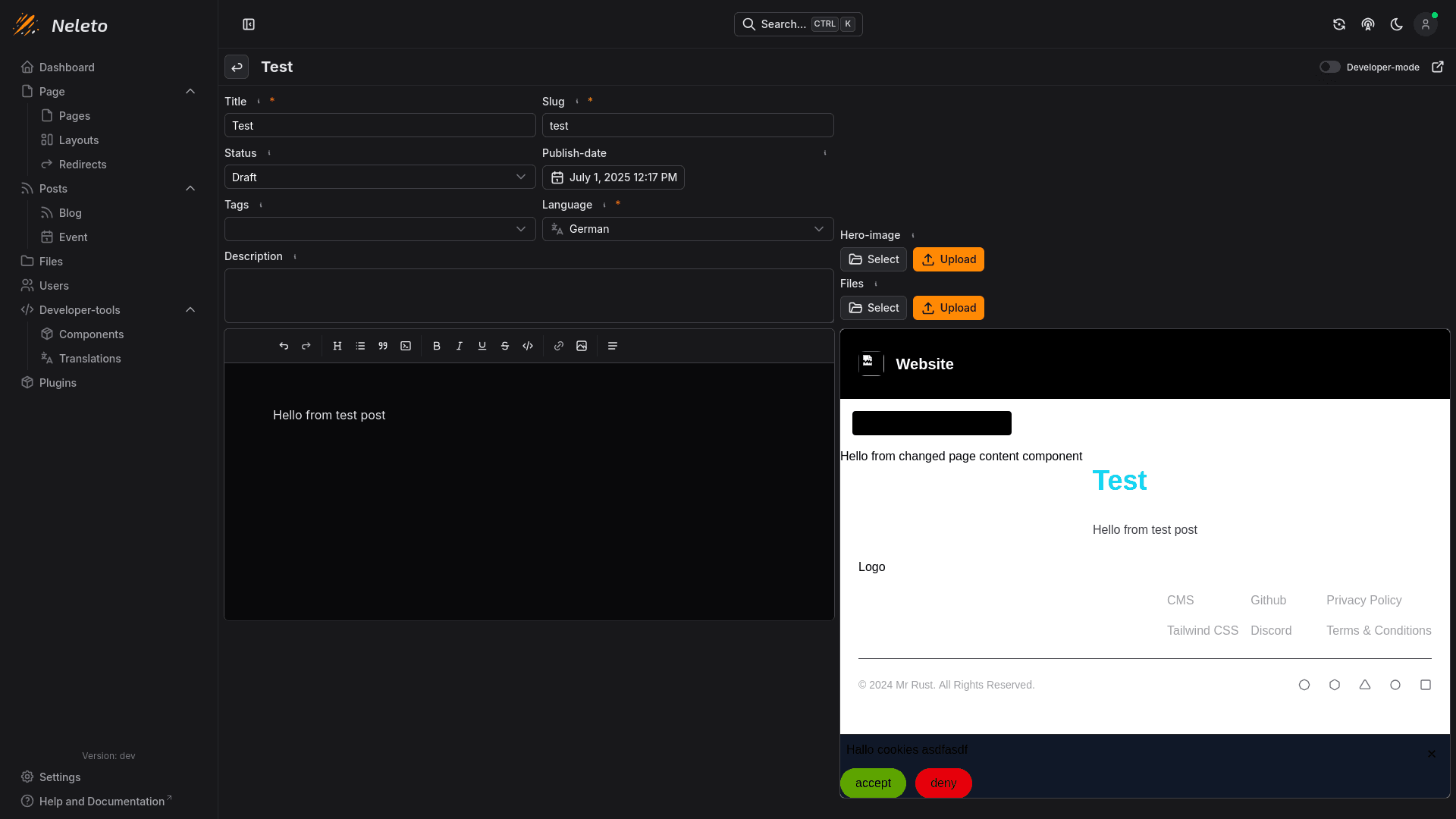
You should get redirected to a page similar to this:
Options
Here are all the options you can set on a blog post:
Title
The title of the blog post, which depending on your blog post content Component will be displayed as the title of the page and/or tab in the visitor's browser.
Slug
This is part of the url when someone visits this blog post.
Status
The status dictates whether the blog post is publicly accessible or only to
logged in users. Set this to Public to make it visible to everyone, or set it
to Draft to hide it from visitors.
Publish-date
You can set the publish date to some time in the future and the status to
Draft if you want this blog post to be automatically published at that time.
If you set the Status to published and don't set the publish date, the publish
date will be set to the timestamp when you press Save.
Tags
Tags allow you to group your posts together in the post list Component.
Description
The description of your blog post will be used for SEO (Search Engine Optimization), depending on your blog post content Component.
Hero image
Here you can set a cover image for your blog post. Your blog post content Component dictates how/if this is rendered when visiting this post.
Files
Here you can attach files to your blog post.
Content
Here you can write the content of your blog post. By default this is a rich
text editor, similar to your word processing program, but if your role is
either developer or admin, you can turn on Developer mode in your profile
settings or in the top right to just use a normal code editor and write plain HTML.
To the right of the content editor, you can see a preview based on your defined blog post page and post content component.