Layouts
Layouts let you group designs and functionality you want to have on multiple pages. With a layout, you can manage these elements in one place, instead of having to add them to each page individually.
Creating a New Layout
You can create new layouts by navigating to Layouts under Page in the sidebar.
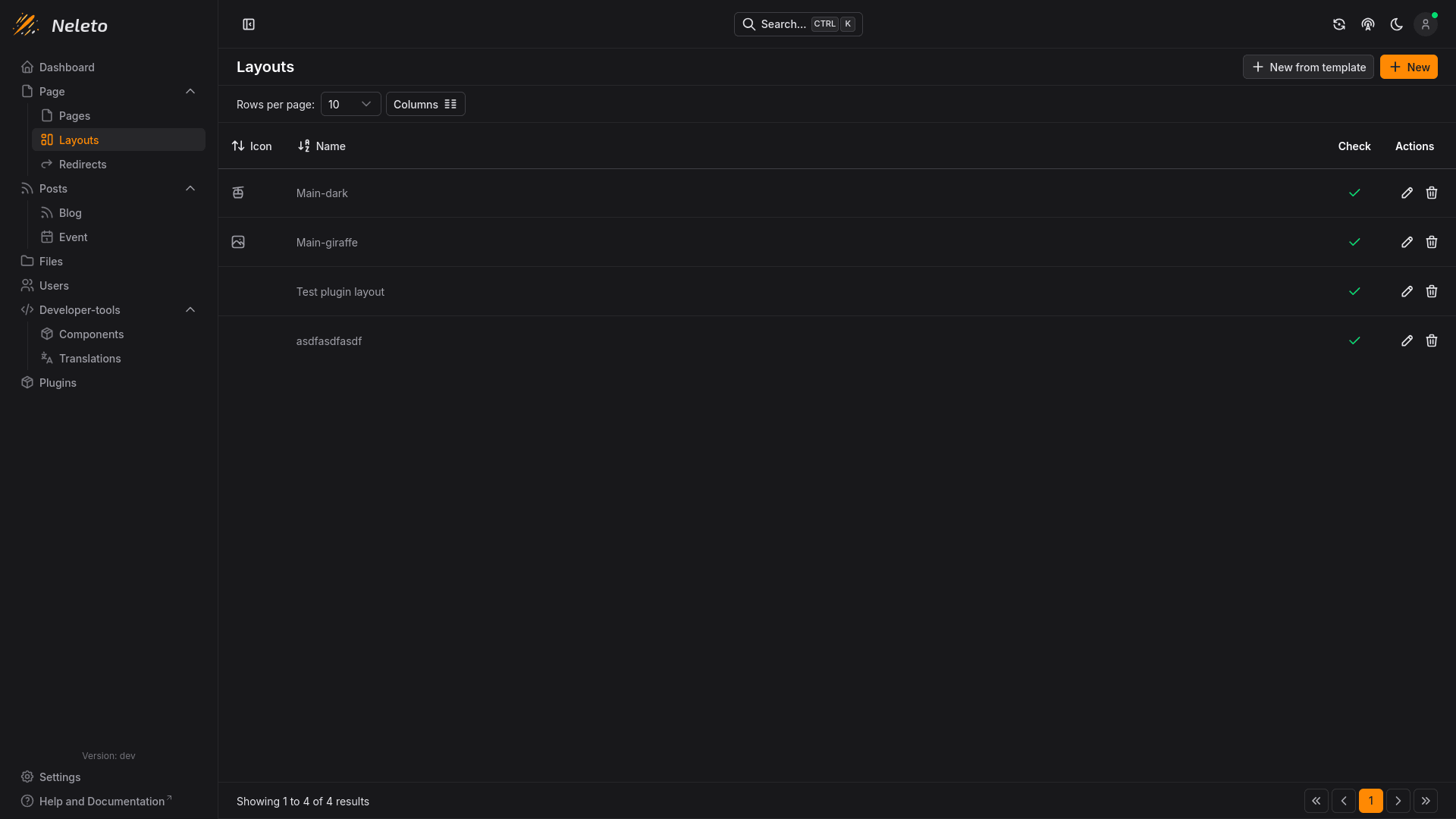
Here you can create a new layout by clicking the + New button, or use a
predefined layout preset that is ready to be used by clicking on
+ New from Template. This will take you to the layout builder:
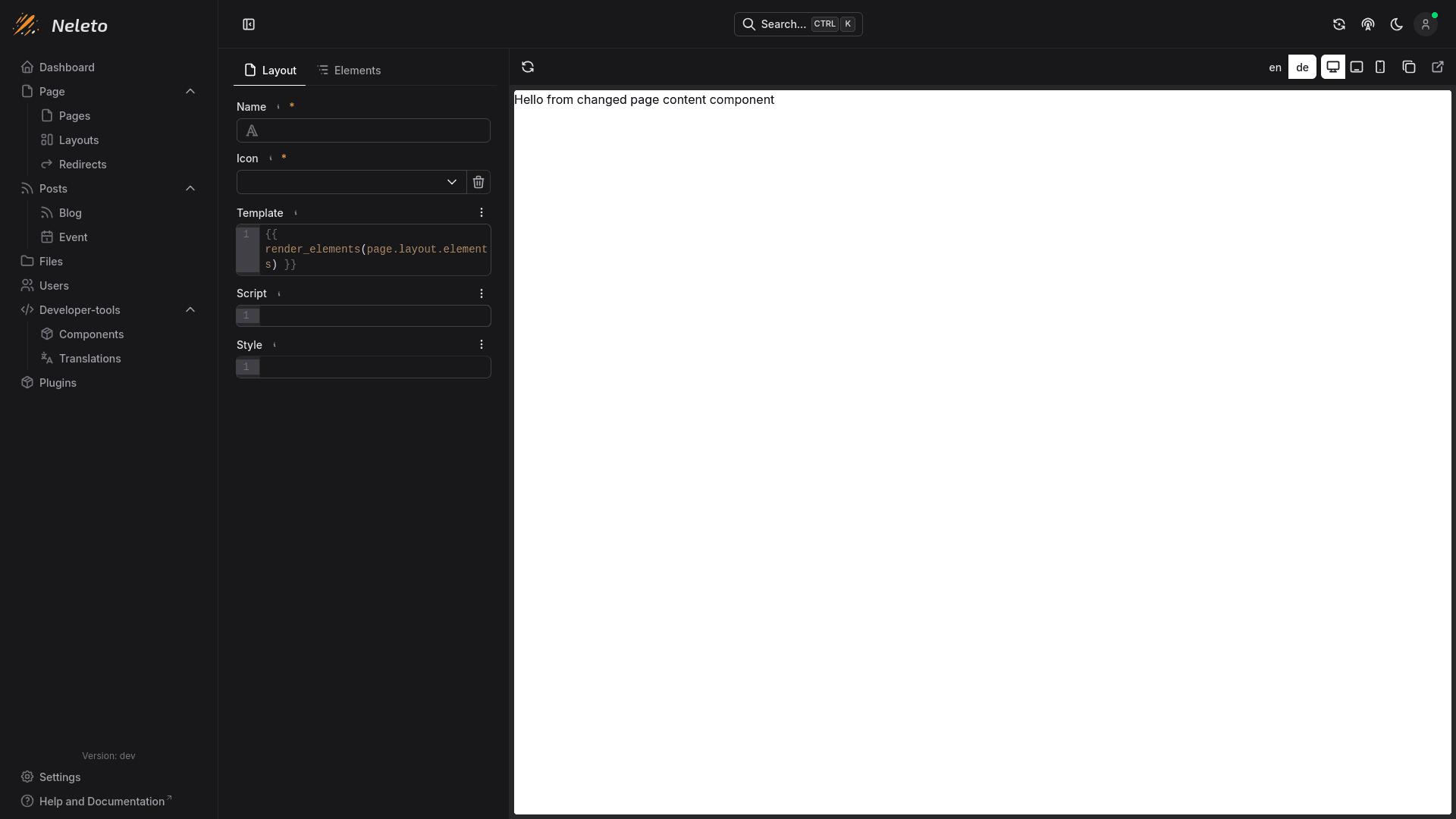
Options
Here are the different options you can set on your layout:
Name
The name of your layout to differentiate it from others.
Icon
Set an icon for your layout, by clicking on the Icon field. Right now you can only use pre-defined icons to design your layout icons.
Template
You can add HTML code to your layout, but do not modify the code line:
{{ render_elements(page.layout.elements) }}. This line renders the elements in
your layout including the page content using this layout.
Script
Here you can add Javascript code which will run on every page using this layout.
Style
There are multiple ways of styling your layout. You can use normal CSS in the style field, or you can use TailwindCSS directly in your template. Layouts using TailwindCSS will only be rendered correctly on pages where tailwindcss is enabled.
body {
    background-color: black;
}
Elements
Here you can add elements to your layout. These elements will be rendered on
every page using this layout. You will notice a special element called
PageContent. This element cannot be deleted and will be replaced with the
rendered page when using this layout.
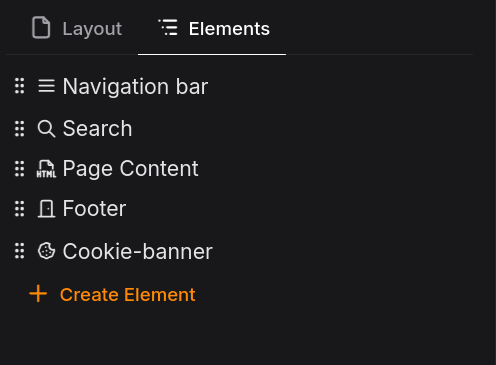
In this image, we've created some custom
components named Menu, Menu Item and
Footer and created some elements using these components.
Integrating your layout into your pages
After finalizing your layout, save it to apply the changes. You can learn how to integrate your layout into your pages here.